

Jenkins CI/CD is an open source solution for continuous integration and deployment. We can use it to build and upload to firebase app distribution so that testers can get a new build for testing.
Now we are going to see how to use Jenkins CI/CD for Kotlin Multiplatform project, build android apk and upload to firebase app distribution. After that testers will be notified by email and can test new build.
To understand this article you have to be familiar with android app development and firebase app distribution.
Step 1: Download Jenkins
To download Jenkins file, go to below link and download the LTS version. Download instruction as like the screenshot.
https://www.jenkins.io/download/

Step 2: Run Jenkins:
Make sure you have installed java on your machine. As you are focusing to build android app so I think you already have installed it.
To run Jenkins- open terminal and use below command and hit enter. To get war file path just drag and drop the file on terminal.
java -jar <path of your jenkins downloaded war file>
In the browser Jenkins Getting Started page of this screenshot(002) there is a red colored text which is actually the password directory path. Copy this path.
Step 3: Get the password & unlock Jenkins:
Now we need to open a directory found in previous step and get the password.

To get the unlock password go to initialAdminPassword directory. In finder choose “Go” menu and click on “Go to Folder…” option.

Paste that copied path on the popup box like below screenshot(004) and hit enter/return.
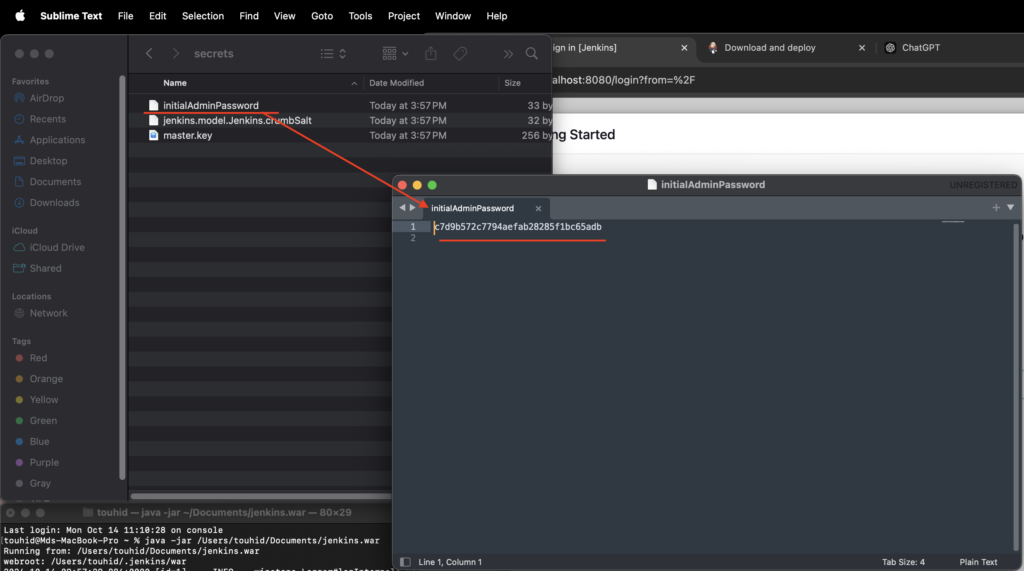
In the screenshot(005) I am using sublime text to open the admin password file. Open the file(initialAdminPassword) using any text editor and copy the password.

Paste copied password in the getting started pages password box and click on Continue button. (006)
Step 4: make Jenkins ready to use:
After unlocking Jenkins we have to setup jenkins to make it ready to use.

(007) After unlocking we will see this page to install plugins. Just choose “Install suggested plugins”

Jenkins will install necessary plugins (008). Make sure you have stable internet connection while doing this step.
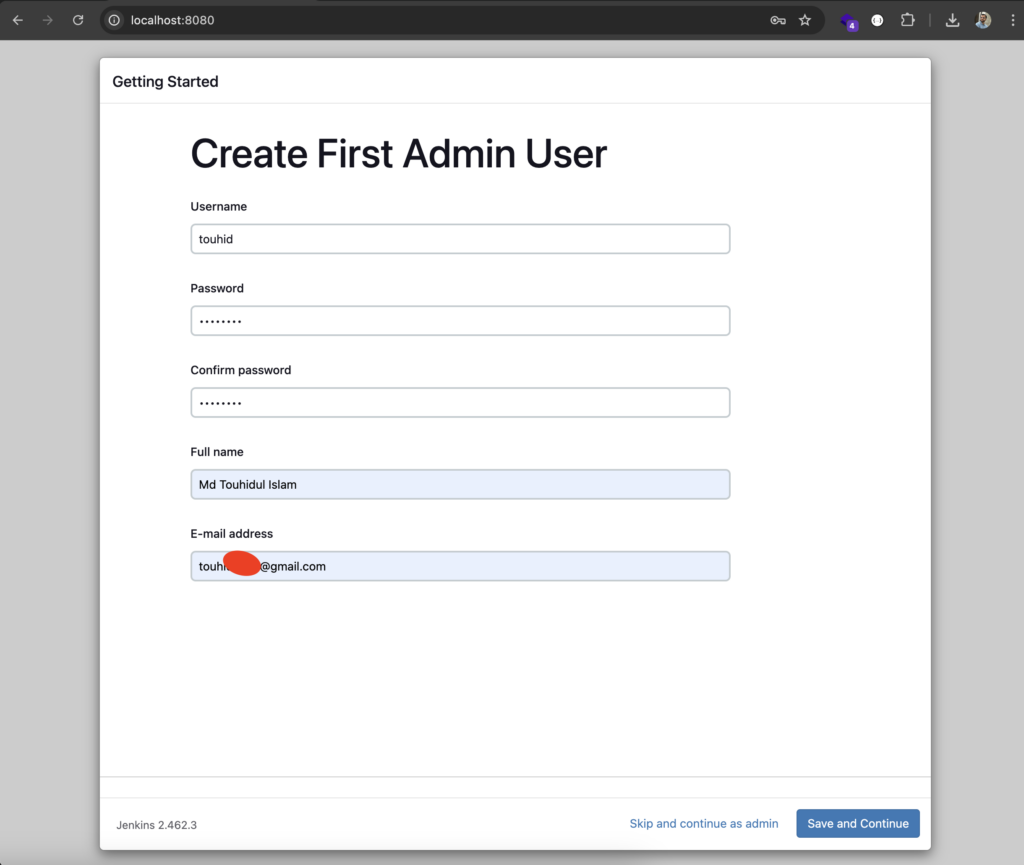
After installation of plugins we have to create admin user. Use your name, password and email for this step(009) and click on “Save and Continue” button.
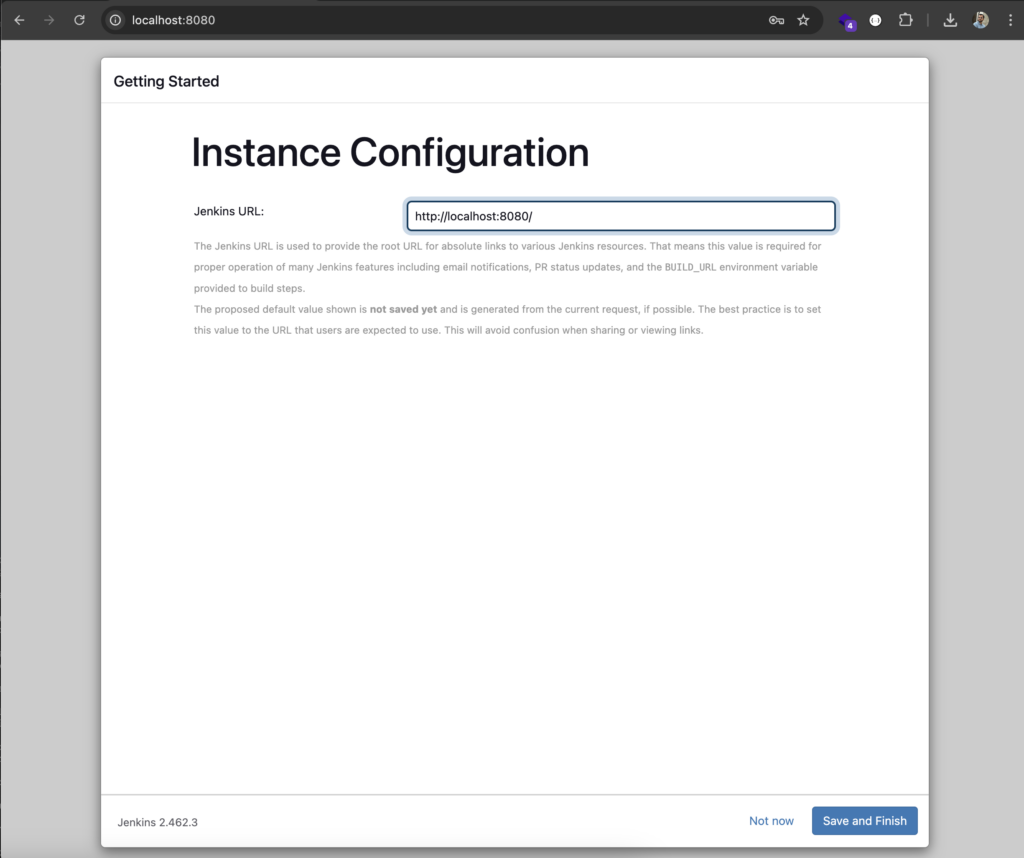
After setting up admin user we will see a screen of Jenkins URL. Just keep this as it is and click on “Save and Finish” button (010).
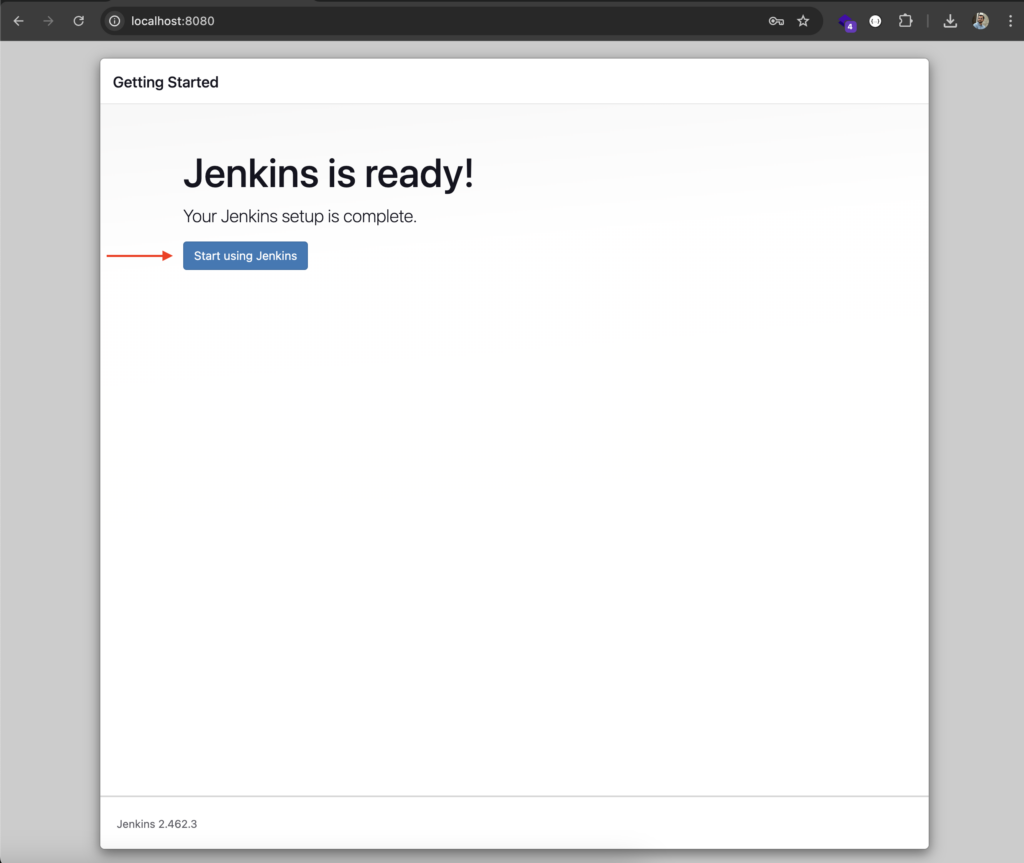
Now Jenkins is ready to use(011). Click on “Start using Jenkins” button.
Step 5: Set Java & Gradle:
We have use set java path and gradle in Jenkins.
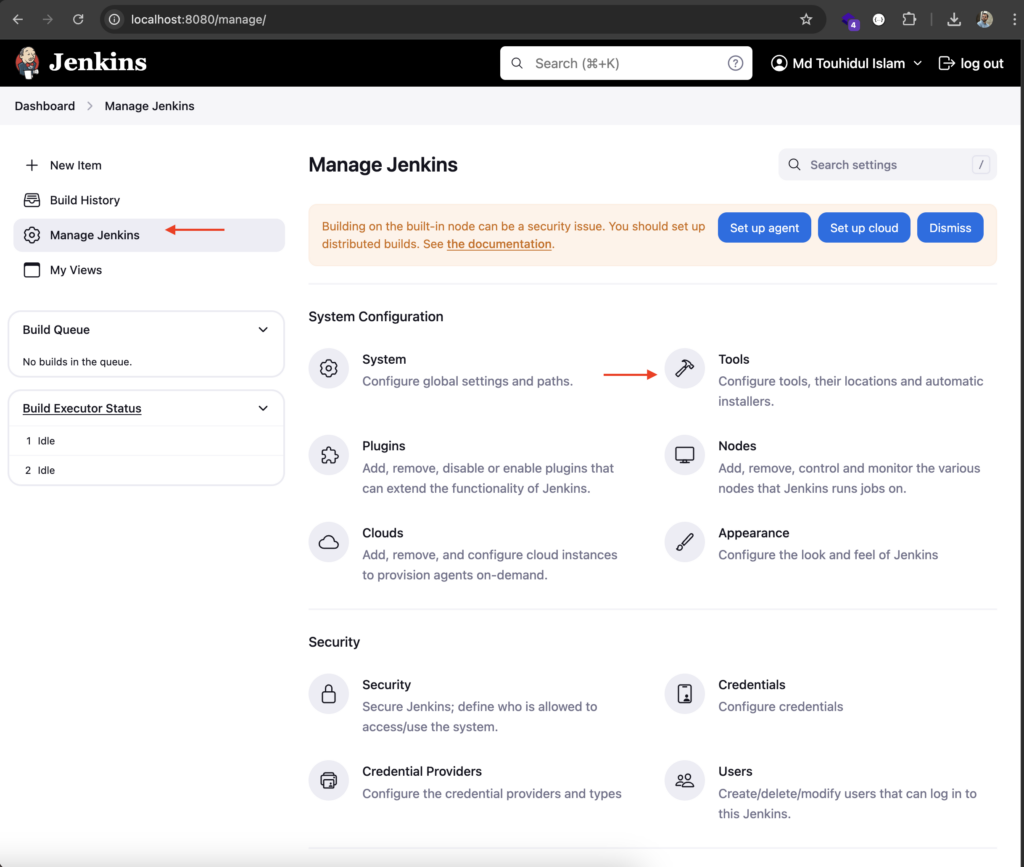
Go to “Manage Jenkins” menu and choose “Tools” (012).
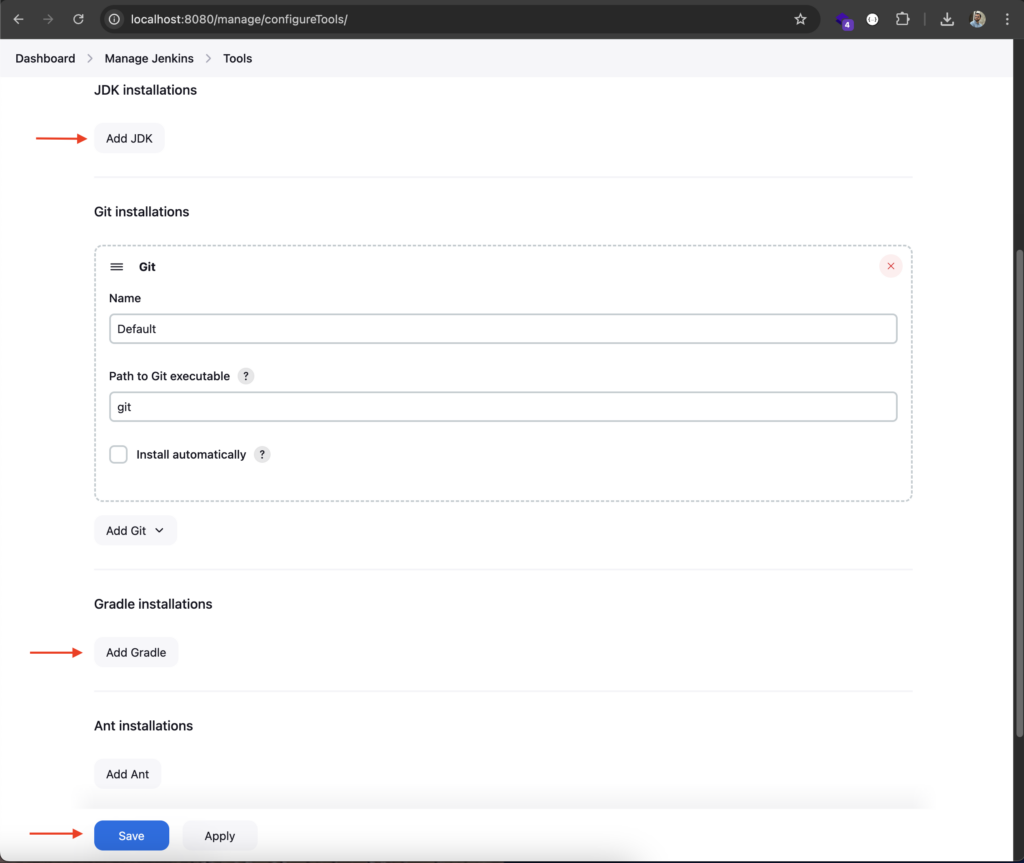
Scroll down a little bit and Click on Add JDK button to add Java path. (013)
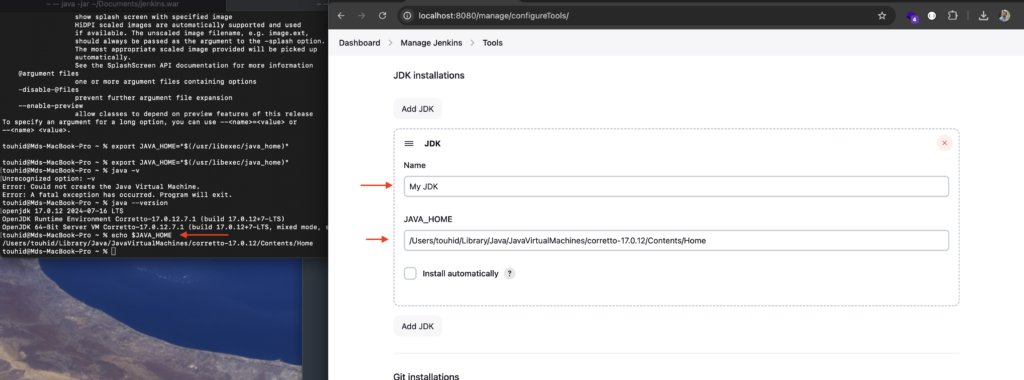
To find installed Java path run below code in your terminal. Copy the path and set it to JAVA_HOME section in Jenkins also use any name in the Name box. (014)
/usr/libexec/java_home // This command to get java path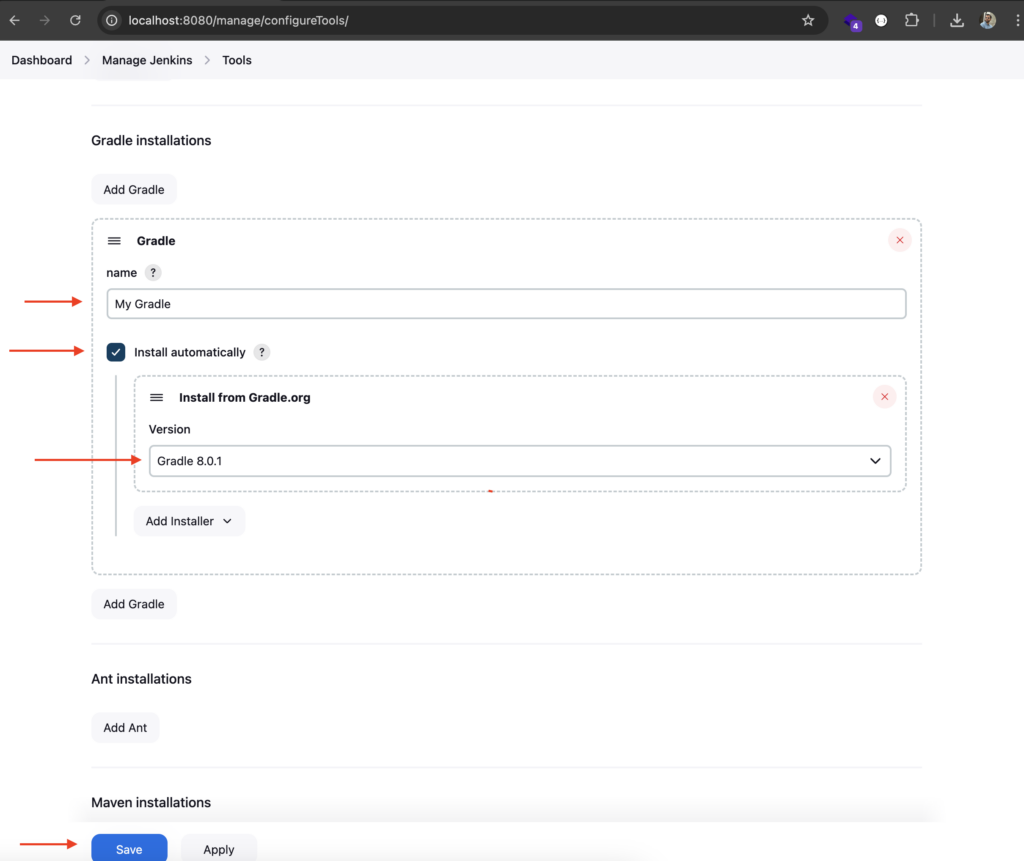
Now we need to set gradle. So scroll down a little more and Click on Add Gradle button. Type a name as your wish and choose a gradle version which one you may need to build your android project. You can check your android project to know supported version. Near version will also may work fine.
Step 6: Create a new Pipeline:
Now we have to create a new pipeline.
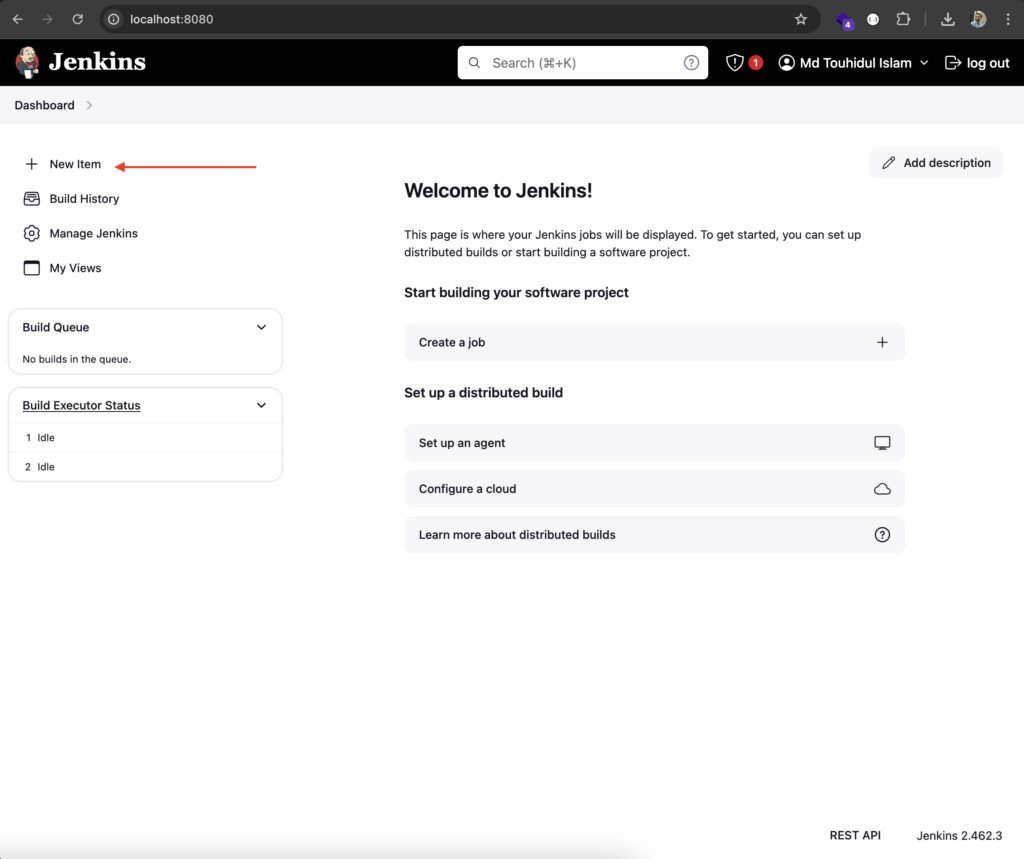
(016) Click on “New Item” option.
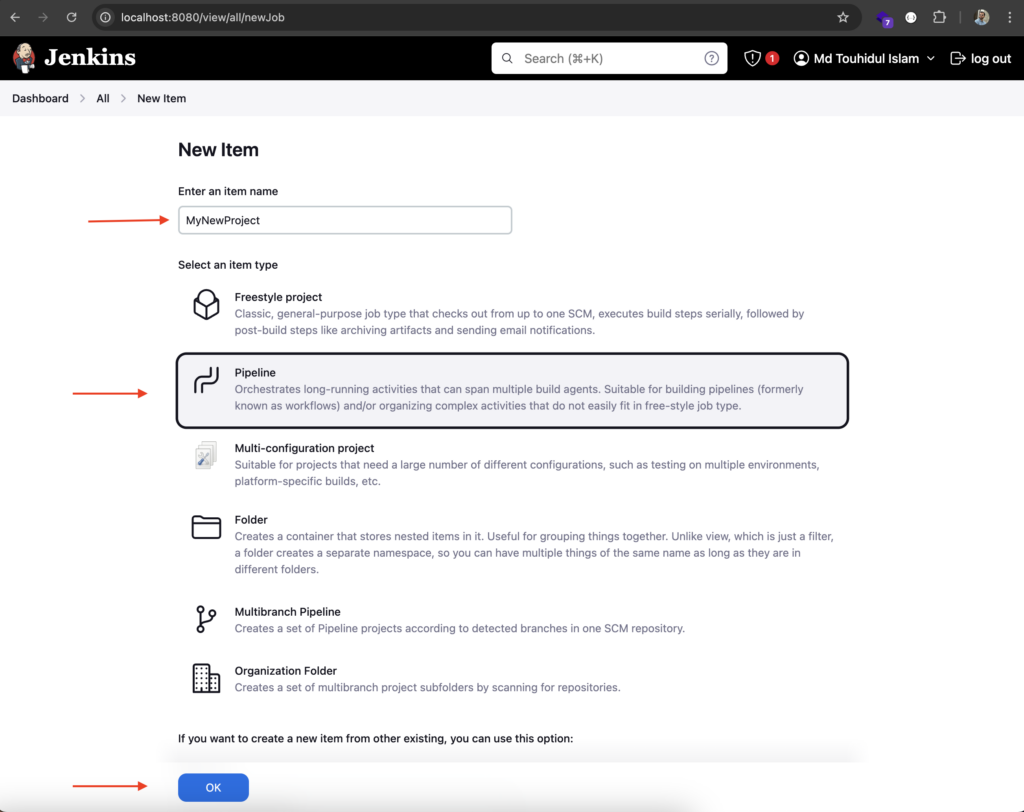
(017) give a name -> choose Pipeline -> Click OK button.
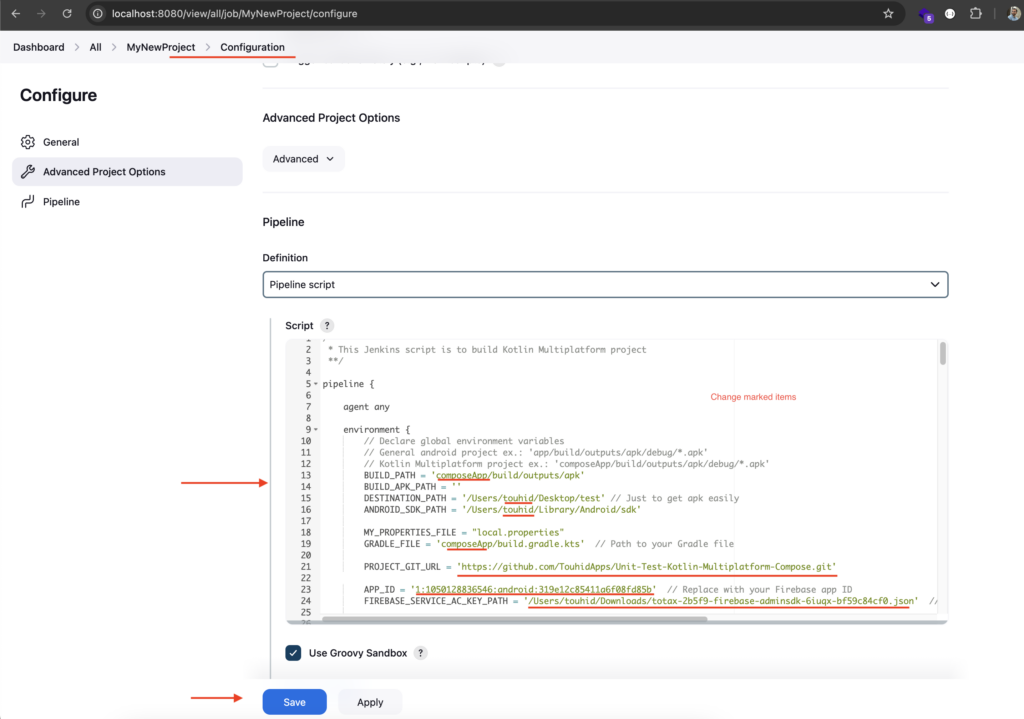
Now we are in the most customisable part. In the pipeline script section we have to write code. You may need different tasks for different work. You can write the script as you need. It is actually a combination of gradle and shell script.
Wait, Before writing the script we can download the firebase account key file. You can get your firebase service account key json file from your firebase project like below.
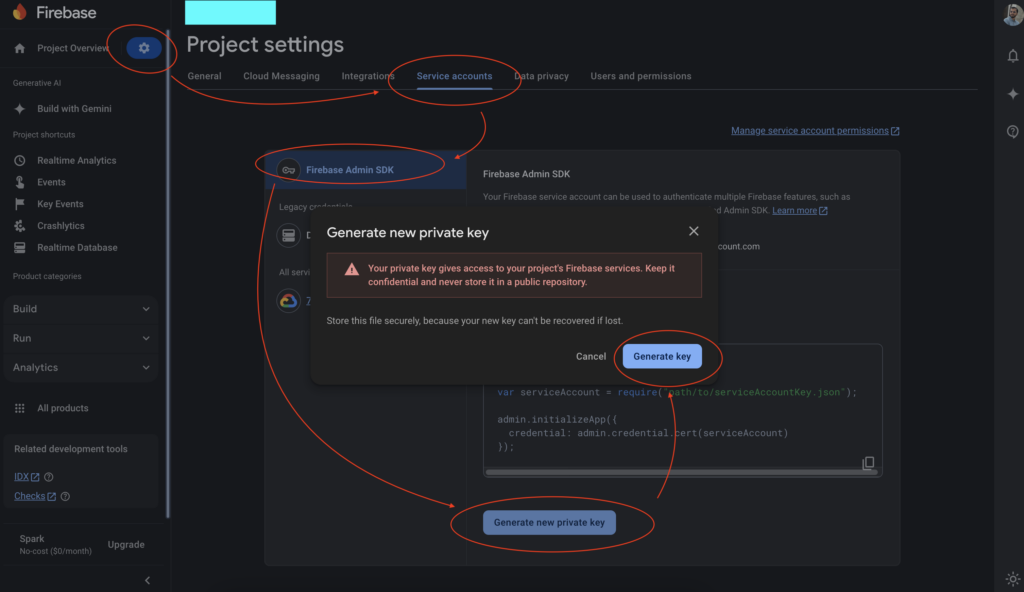
Open your firebase project -> Project settings -> Service Accounts -> Firebase Admin SDK -> Generate new private key – > Generate Key -> File will download. Use this file path as FIREBASE_SERVICE_AC_KEY_PATH of next given code.
I am adding a code below so you just can copy and paste it to your Script section and after a little customisation you are ready to go. It is a little big code but don’t worry you will understand if you see the code. In below code from the environment { } block you need to change the git url, destination path, sdk path, app id, firebase json file path.
/**
 * This Jenkins script is to build Kotlin Multiplatform project
 **/

pipeline {

    agent any

    environment {
        // Declare global environment variables
        // General android project ex.: 'app/build/outputs/apk/debug/*.apk'
        // Kotlin Multiplatform project ex.: 'composeApp/build/outputs/apk/debug/*.apk'
        BUILD_PATH = 'composeApp/build/outputs/apk'
        BUILD_APK_PATH = ''
        DESTINATION_PATH = '/Users/touhid/Desktop/test' // Just to get apk easily
        ANDROID_SDK_PATH = '/Users/touhid/Library/Android/sdk'

        MY_PROPERTIES_FILE = "local.properties"
        GRADLE_FILE = 'composeApp/build.gradle.kts'  // Path to your Gradle file

        PROJECT_GIT_URL = 'https://github.com/TouhidApps/Unit-Test-Kotlin-Multiplatform-Compose.git'

        APP_ID = '1:1050128836546:android:319e12c81a6f08fd85b'  // Replace with your Firebase app ID
        FIREBASE_SERVICE_AC_KEY_PATH = '/Users/touhid/Downloads/abc-2b5f9-firebase-adminsdk-6iuqx-bf59c84cf0.json'  // Replace with your file path

    }

    stages {

        stage('Check property file') { // check local.properties file is available or not if not create it
            steps {
                script {

                    // Define the file path and content
                    def propFilePath = "${env.WORKSPACE}/${MY_PROPERTIES_FILE}"
                    def propFileContent = """sdk.dir=${ANDROID_SDK_PATH}
VERSION_CODE=1
VERSION_NAME=1.0.0
RELEASE_NOTES=What's new:	- Added new features	- Fixed bug	- Improved performance	- new notificat"""

                    // Check if the file exists
                    if (!fileExists(propFilePath)) {
                        // Create the file and write content
                        writeFile file: propFilePath, text: propFileContent
                        echo "${MY_PROPERTIES_FILE} File created: ${propFilePath}"
                    } else {
                        echo "${MY_PROPERTIES_FILE} File already exists: ${propFilePath}"
                    }

                }
            }
        }

        stage('Store Value') {
            steps {
                script {
                    // Store the parameter value for future builds
                    //    writeFile file: MY_PROPERTIES_FILE, text: "VERSION_NAME=${params.VERSION_NAME}"

                    // Read the properties file
                    def fileContent = readFile("${MY_PROPERTIES_FILE}").trim().split('\n').collectEntries { line ->
                        def (key, value) = line.split('=')
                        [(key.trim()): value.trim()]
                    }

                    // Log the current file content
                    echo "File Content:\n${fileContent}"

                    // Update the properties with the new value
                    if (params.VERSION_CODE) {
                        fileContent['VERSION_CODE'] = params.VERSION_CODE
                    }
                    if (params.VERSION_NAME) {
                        fileContent['VERSION_NAME'] = params.VERSION_NAME
                    }
                    if (params.RELEASE_NOTES) {
                        fileContent['RELEASE_NOTES'] = params.RELEASE_NOTES.replaceAll('\n', '\t') // Replace newlines with tabs, not to inturrupt new line of other key values values
                    }

                    // Write back to the properties file
                    writeFile file: "${MY_PROPERTIES_FILE}", text: fileContent.collect { "${it.key}=${it.value}" }.join('\n')

                }
            }
        }

        stage('Input Parameter') { // Keep this stage after 'Store Value' so after storing it can load new values
            steps {
                script {
                    // Define a parameter dynamically based on the environment variable
                    def fileContent = readFile("${MY_PROPERTIES_FILE}").trim().split('\n').collectEntries { line ->
                        def (key, value) = line.split('=')
                        [(key.trim()): value.trim()]
                    }
                    echo "${fileContent['VERSION_CODE']}"
                    echo "${fileContent['VERSION_NAME']}"
                    echo "${fileContent['RELEASE_NOTES']}"
                    properties([
                        parameters([
                            choice(name: 'BUILD_TYPE', choices: ['debug', 'release'], description: 'Select build type'),
                            string(name: 'FIREBASE_TESTERS', defaultValue: 'uat-testers,uat-testers', description: 'Enter Firebase tester group (comma-separated)'),
                            string(name: 'VERSION_CODE', defaultValue: "${fileContent['VERSION_CODE']}", description: "Increase app version code (Current: ${fileContent['VERSION_CODE']})"),
                            string(name: 'VERSION_NAME', defaultValue: "${fileContent['VERSION_NAME']}", description: "Increase app version name (Current: ${fileContent['VERSION_NAME']})"),
                            text(name: 'RELEASE_NOTES', defaultValue: "${fileContent['RELEASE_NOTES'].replaceAll('\t', '\n')}", description: 'Release notes:')
                        ])
                    ])
                }
            }
        }

        stage('Checkout') {
            steps {
                script {
                    // Check out a specific branch
                    git branch: 'main', url: "${PROJECT_GIT_URL}"
                }
            }
        }

        stage('Preparation') {
            steps {
                script {

                    // Define Groovy variables
                    def buildType = params.BUILD_TYPE ?: 'debug'
                    def buildPath = "${BUILD_PATH}/${buildType}"
                    BUILD_APK_PATH = "${buildPath}/*.apk"
                    // Make directory if not exists
                    sh "mkdir -p ${buildPath}"
                    sh "mkdir -p ${DESTINATION_PATH}"
                    // Delete previous build if available
                    sh "rm -rf ${buildPath}/*"

                }
            }
        }

        stage('Update Version in Gradle File') {
            steps {
                script {
                    // Read the existing gradle.kts file
                    def gradleContent = readFile("${GRADLE_FILE}")

                    // Replace versionCode and versionName
                    gradleContent = gradleContent.replaceAll(/versionCode\s*=\s*\d+/, "versionCode = ${params.VERSION_CODE}")
                    gradleContent = gradleContent.replaceAll(/versionName\s*=\s*\".*?\"/, "versionName = \"${params.VERSION_NAME}\"")

                    // Write back to the gradle.kts file
                    writeFile(file: "${GRADLE_FILE}", text: gradleContent)
                    echo "Updated ${GRADLE_FILE} with versionCode=${params.VERSION_CODE} and versionName=${params.VERSION_NAME}"
                }
            }
        }

        stage('Build') {
            steps {
                script {
                    // or use `gradlew.bat` for Windows
                    def buildCommand = "./gradlew assemble${BUILD_TYPE.capitalize()}"
                    sh buildCommand
                }
            }
        }

        stage('Archive') {
            steps {
                archiveArtifacts artifacts: BUILD_APK_PATH, allowEmptyArchive: true
            }
        }

        stage('Pause 3 seconds') {
            steps {
                // Pause for 3 seconds to make sure build file has written to storage perfectly
                script {
                    sleep(3)  // Pause for 3 seconds
                }
            }
        }

        stage('Copy to Desktop') {
            steps {
                // Copy the APK to a specific location
                script {
                    sh "cp ${BUILD_APK_PATH} ${DESTINATION_PATH}"
                }
            }
        }

        stage('Upload to firebase distribution') {
            steps {
                script {
                    // Upload APK to Firebase App Distribution
                    def fileListCmd = "ls ${BUILD_APK_PATH} | head -n 1" //  | head -n 1 = for first file found
                    def apkFilePath = sh(script: fileListCmd, returnStdout: true).trim()

                    echo "Uploading apk file path: ${apkFilePath}"

                    // Authenticate with Firebase
                    env.GOOGLE_APPLICATION_CREDENTIALS = "${FIREBASE_SERVICE_AC_KEY_PATH}"

                    // Upload to Firebase App Distribution
                    def firebaseUploadCmd = """
                    firebase appdistribution:distribute "${apkFilePath}" \
                      --app "${APP_ID}" \
                      --groups "${params.FIREBASE_TESTERS}" \
                      --release-notes "${params.RELEASE_NOTES}"
                      """

                    echo "Executing: ${firebaseUploadCmd}"
                    sh firebaseUploadCmd

                }
            }
        }

        // stage('Send notification') {
        //     steps {
        //         script {
        //             if (currentBuild.result == 'SUCCESS') {
        //                 // Send success notification
        //             } else {
        //                 // Send failure notification
        //             }
        //         }
        //     }
        // }


     //   stage('Test') {
     //       steps {
      //          sh './gradlew test'
     //       }
     //   }
        // post {
        //     always {
        //         mail to: '[email protected]',
        //              subject: "Build ${currentBuild.currentResult}: Job '${env.JOB_NAME}'",
        //              body: "Check console output at ${env.BUILD_URL}"
        //     }
        //  }
    }

}
You can enable test stage if you need by uncommenting test stage.
I would like to share my git repository where I have kept above code in “Jenkinsfile”. Don’t forget to give a start in this repository.
https://github.com/TouhidApps/Jenkins-with-KMP
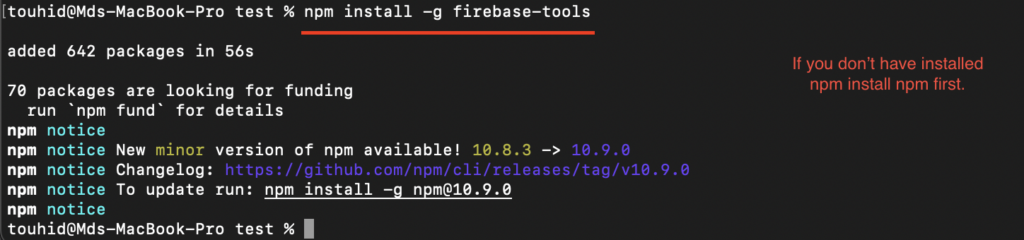
(019) Now we need to install firebase tools to use firebase terminal based tool. Run below code in terminal.
npm install -g firebase-tools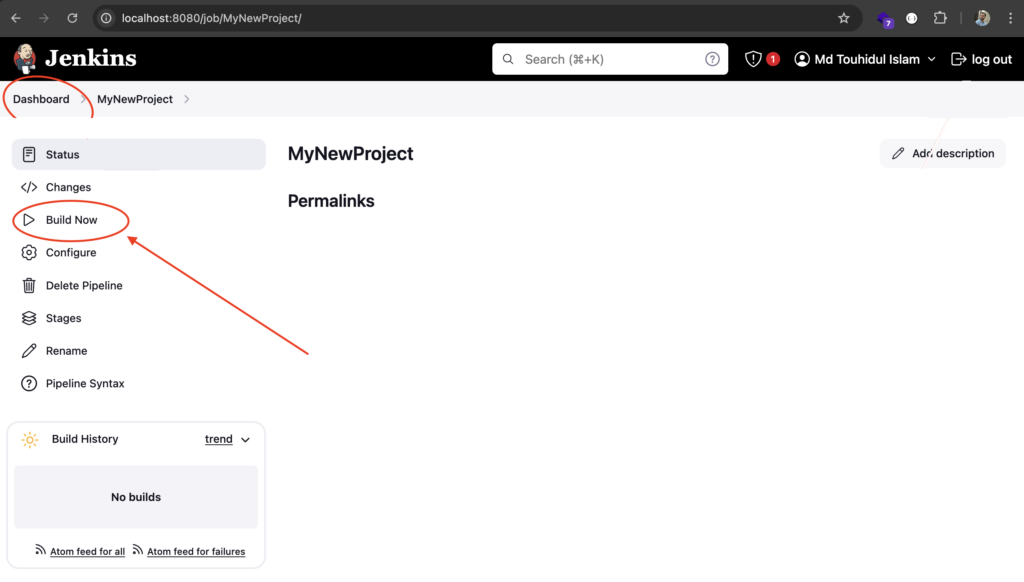
All set. Now click on Build Now button and click Build button. Don’t worry first build will fail and you will not see any extra option to choose.
Add testers on firebase app distribution and make testers group. Testers group you can set in the jenkins script.
Now see below. After first build your menu name will be “Build with Parameters” and there are some options to choose. you already know what are the options if you are familiar with firebase app distribution.
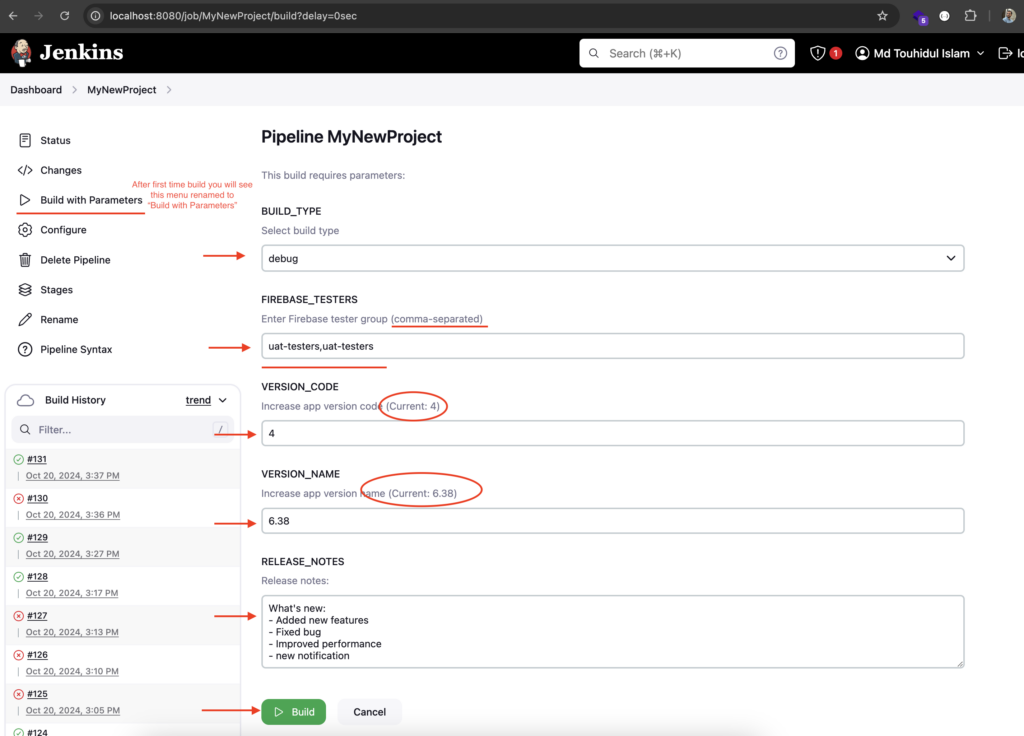
Now build this to upload apk on firebase app distribution. We will also get a copy of apk file in our desktop to easily access apk. Sometimes we need to share apk without firebase app distribution so I kept that option in the script.
Thank you so much. Share with your friends who need it.